
Create a Topic
1
Choose a node
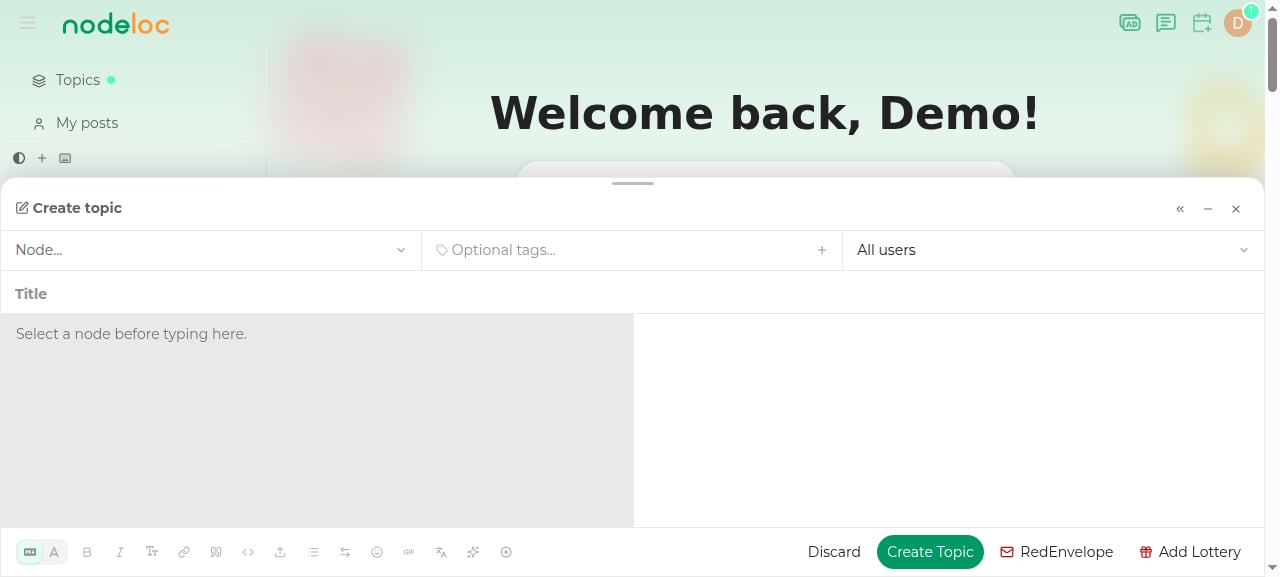
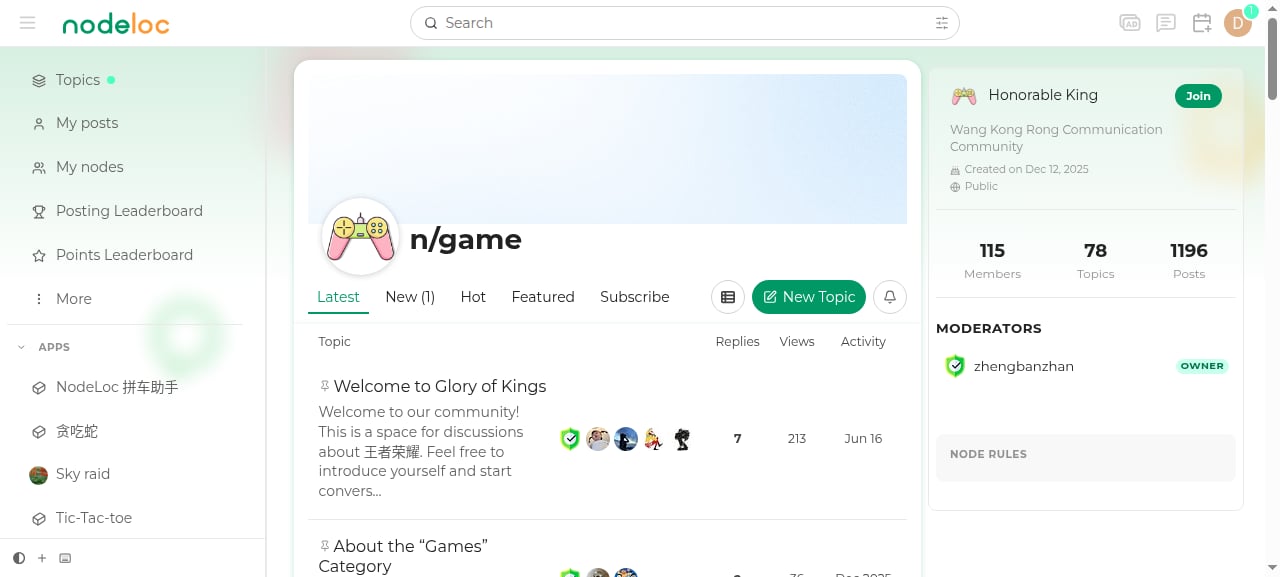
Find a suitable node (section) on the homepage or in the node list, enter it, and click “New Topic”. You can also click the “New Topic” button in the top navigation directly and choose a node in the editor.
2
Write the title and content
Enter a clear title, choose the correct node and tags, then write the body in Markdown.
3
Set read permissions (optional)
The “Read Permission” dropdown below the title lets you restrict the topic to users of specific trust levels — see Topic Read Permissions.
4
Publish
Click “Create Topic” to publish. Before publishing, you can also attach a red envelope or a lottery.
Editor Features
The editor supports Markdown syntax, and the toolbar provides common formatting: bold, italic, headings, lists, quotes, code blocks, links, image uploads, and more.Insert Hidden Content
The extension buttons in the toolbar let you insert three types of hidden content tags into a post:- Reply-to-view
[reply]...[/reply]: visible after the reader replies - Login-to-view
[login]...[/login]: visible to logged-in users only - Pay-to-view
[pay amount=100]...[/pay]: visible after the reader pays Energy
Upload Images and Videos
- Click the upload button in the toolbar, or paste/drag images directly into the editor.
- Video files (mp4, mov, webm, etc., up to 500MB each) are automatically transcoded after upload and displayed in a playable inline player once transcoding completes.
Reply and Interact
- Reply to a topic: click the “Reply” button at the bottom of the topic.
- Reply to a specific post: click the reply button in that post’s action bar; it automatically quotes and links the context.
- Like: click ❤️ to like a post — the author earns Energy.
- Reward: click the ⚡ button in the post’s action bar to reward the author with Energy — see Rewards.
- Quote: select text in a post and click the “Quote” button that appears to quote that passage.
Manage Your Content
- Edit: after posting, click the ✏️ icon in the bottom-right corner of the post to edit it within a limited time.
- Delete: you can delete your own posts within a short window.
- Pin a reply: topic authors can pin any reply in the topic to the top to highlight important information. Select “Pin” from the post’s ”⋯” menu; click again to unpin.
Posting Tips
Choose the right node
Choose the right node
Posting in the wrong node hurts visibility and your topic may be moved by an administrator. If you’re unsure where to post, browse all nodes first to see what each node covers.
Write a good title
Write a good title
The title is key to attracting clicks. State your topic clearly and avoid uninformative titles like “Help” or “Come take a look”.