
How to Set It Up
1
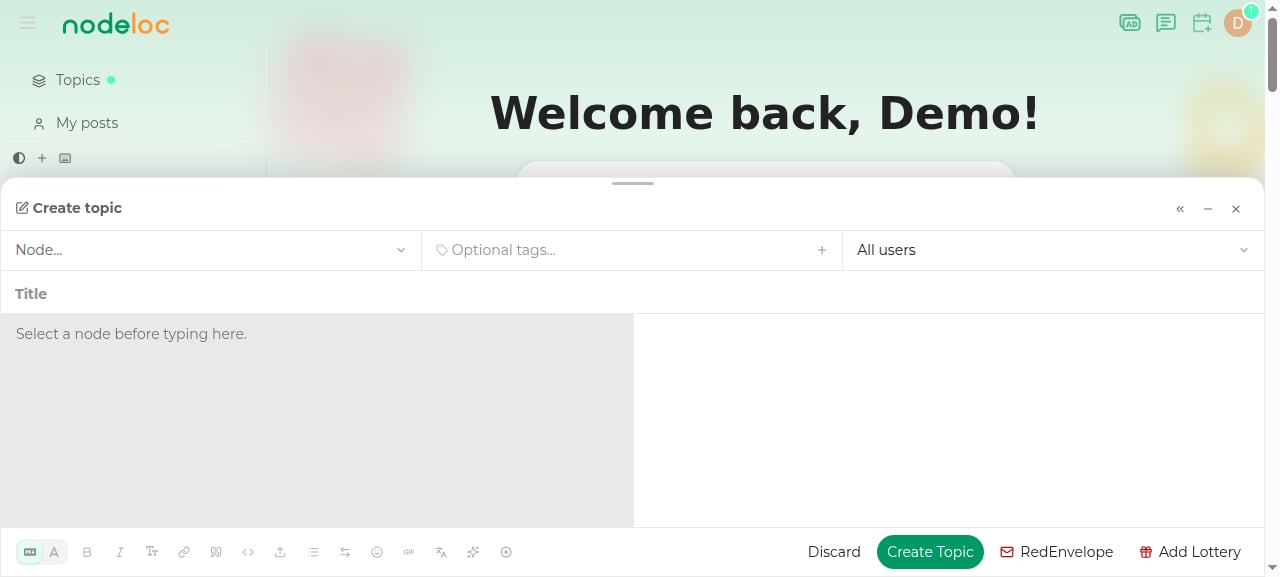
Create or edit a topic
When creating a topic, the “Read Permission” dropdown below the title defaults to “Read Permission (Everyone)”. You can also adjust it when editing the first post or changing the title.
2
Choose the minimum level
Select the minimum trust level allowed to read: Bronze (TL0), Silver (TL1), Gold (TL2), Diamond (TL3), or King (TL4).
3
Publish
After publishing, only users at that level or above can open the topic.
What Readers See
- Topic lists: restricted topics show a 🔒 icon next to the title. It’s gray when you have access and red when you don’t.
- Users without access see a notice when opening the topic: “This topic requires trust level N to read.”
- Restricted content is never leaked to unauthorized users through email notifications, search excerpts, RSS, or other channels.
Admins and moderators are not affected by read permissions and can see all topics.
Usage Tips
- Read permission restricts the entire topic (including all replies); it can’t hide individual posts. For partial hiding, use hidden content tags.
- High level restrictions drastically reduce readership — keep “Everyone” for regular discussions.
- For trust level rules, see Energy and Trust Levels.